Skip to content
MANUPRIME

Modules 2.10 / 2.11

Production Engine

5 articles

The production engine at a glance

One configurable engine drives every industry — orders, job cards, WIP, BOM, costing and traceability.

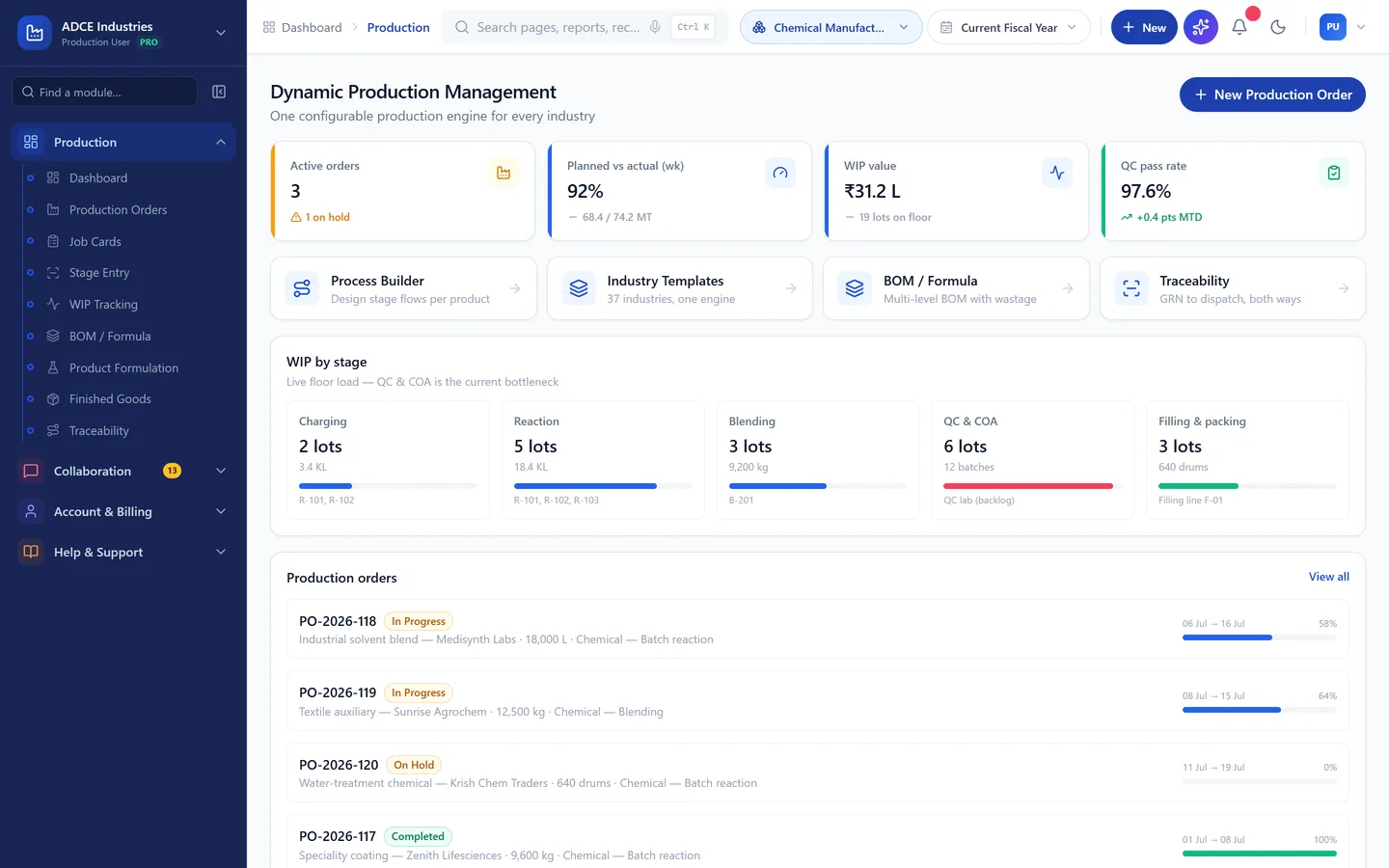
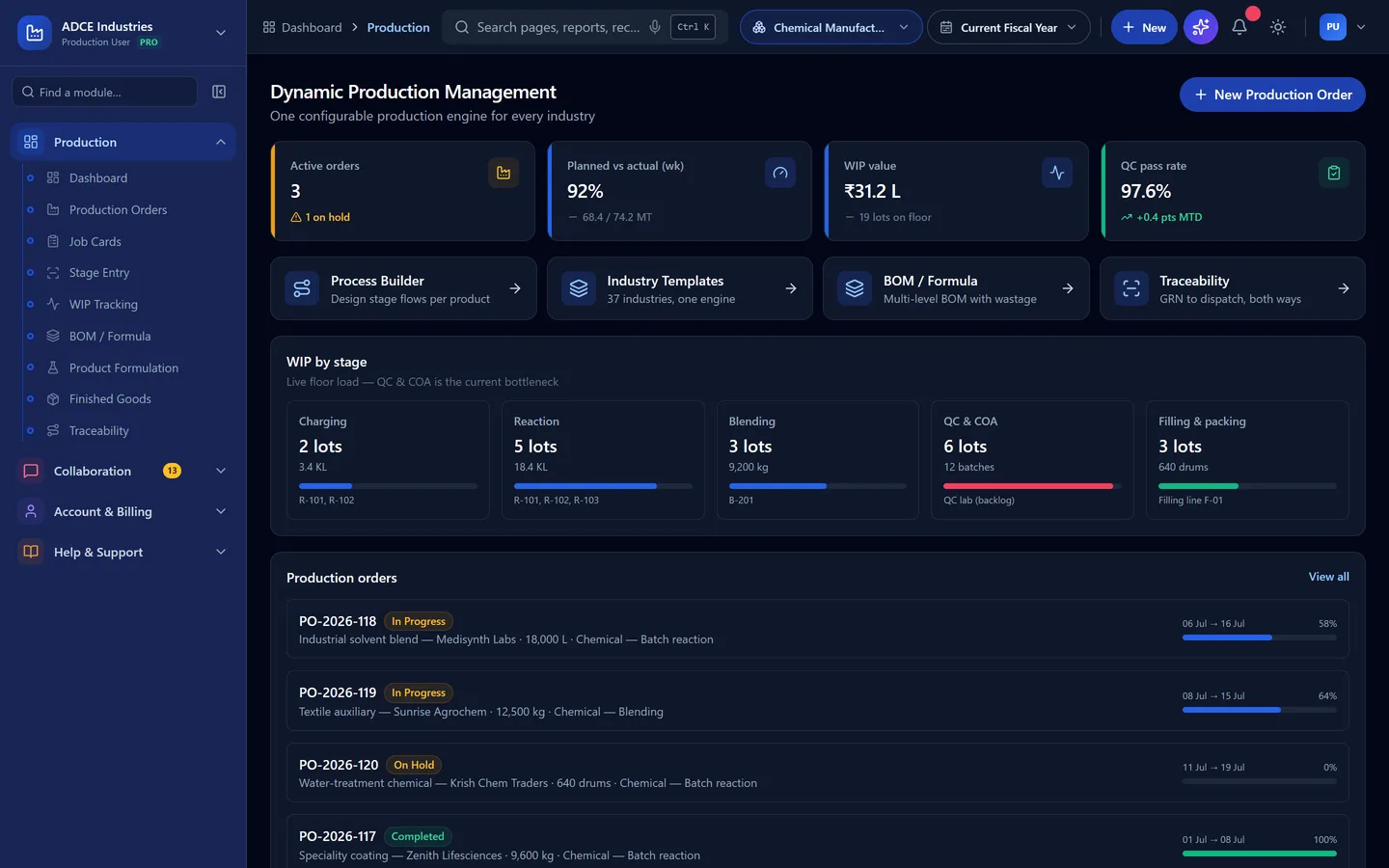
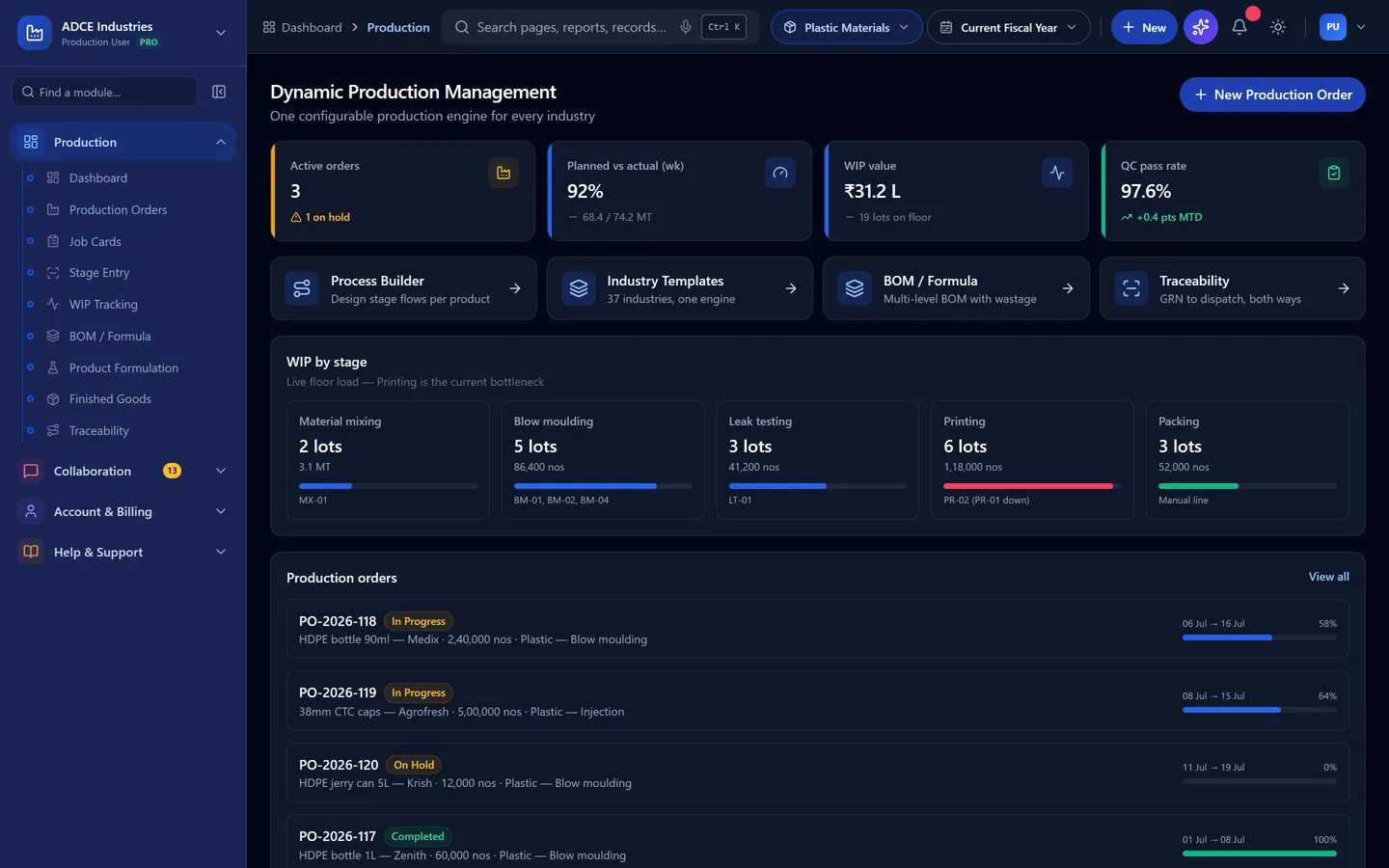
  1. Production → Production Engine shows active orders with progress, WIP load by stage (with the current bottleneck highlighted) and planned-vs-actual output.
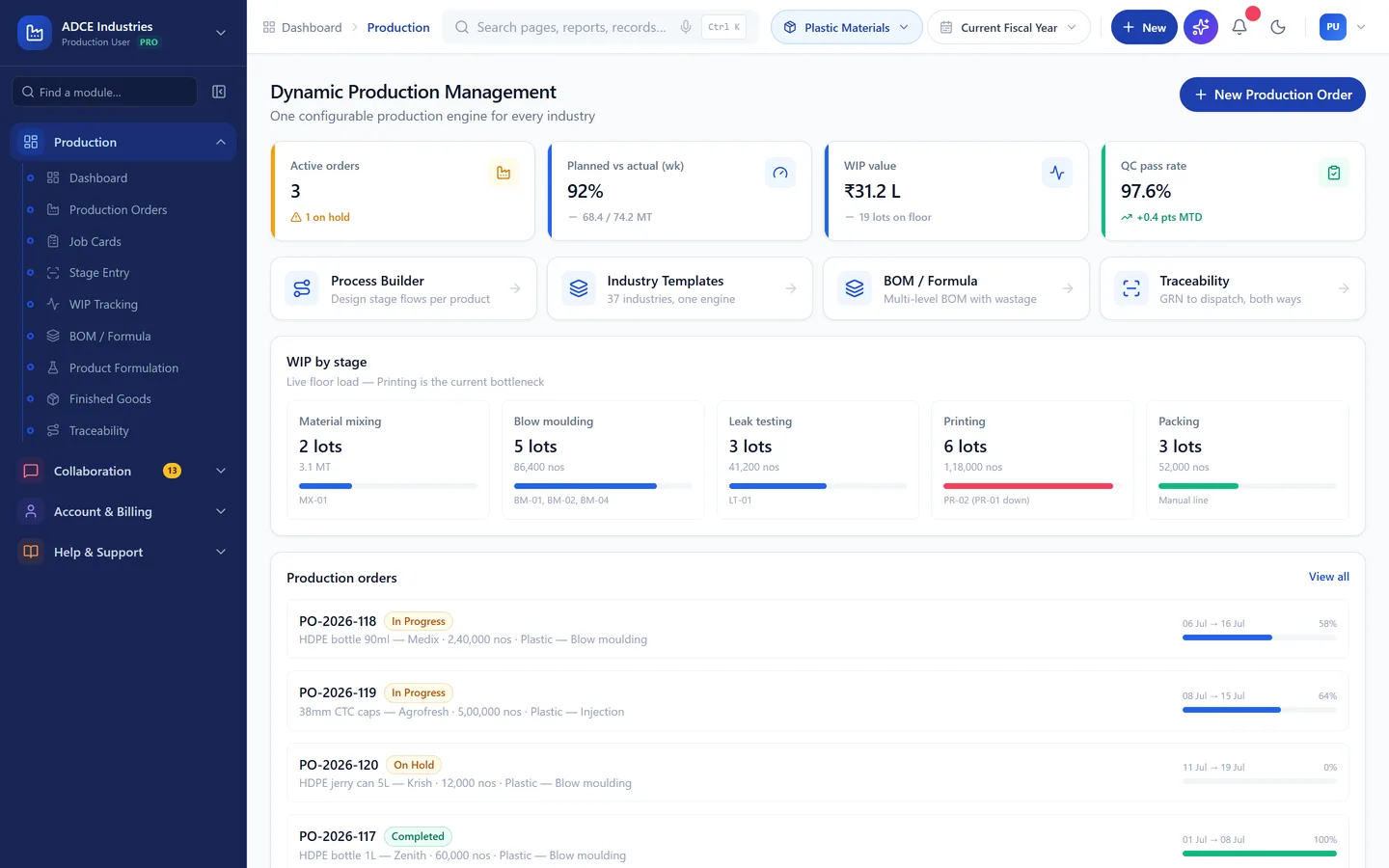
    Production overview with WIP stage load
    Production overview with WIP stage load
  2. Use the quick tiles to jump to Process Builder, Industry Templates, BOM/Formula and Traceability.
Creating and tracking a production order

Production orders drive job cards, stage entries, material issue and costing.

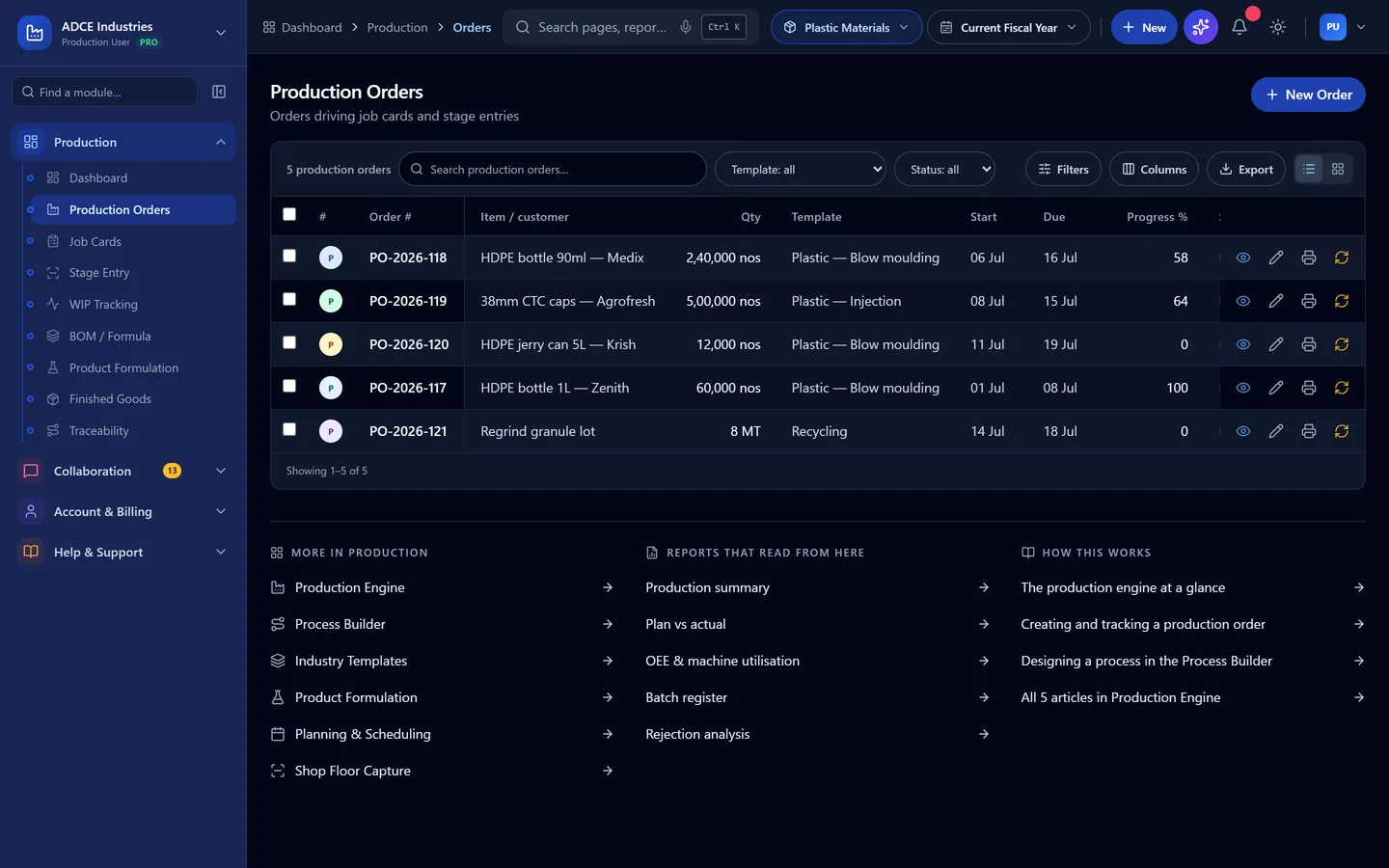
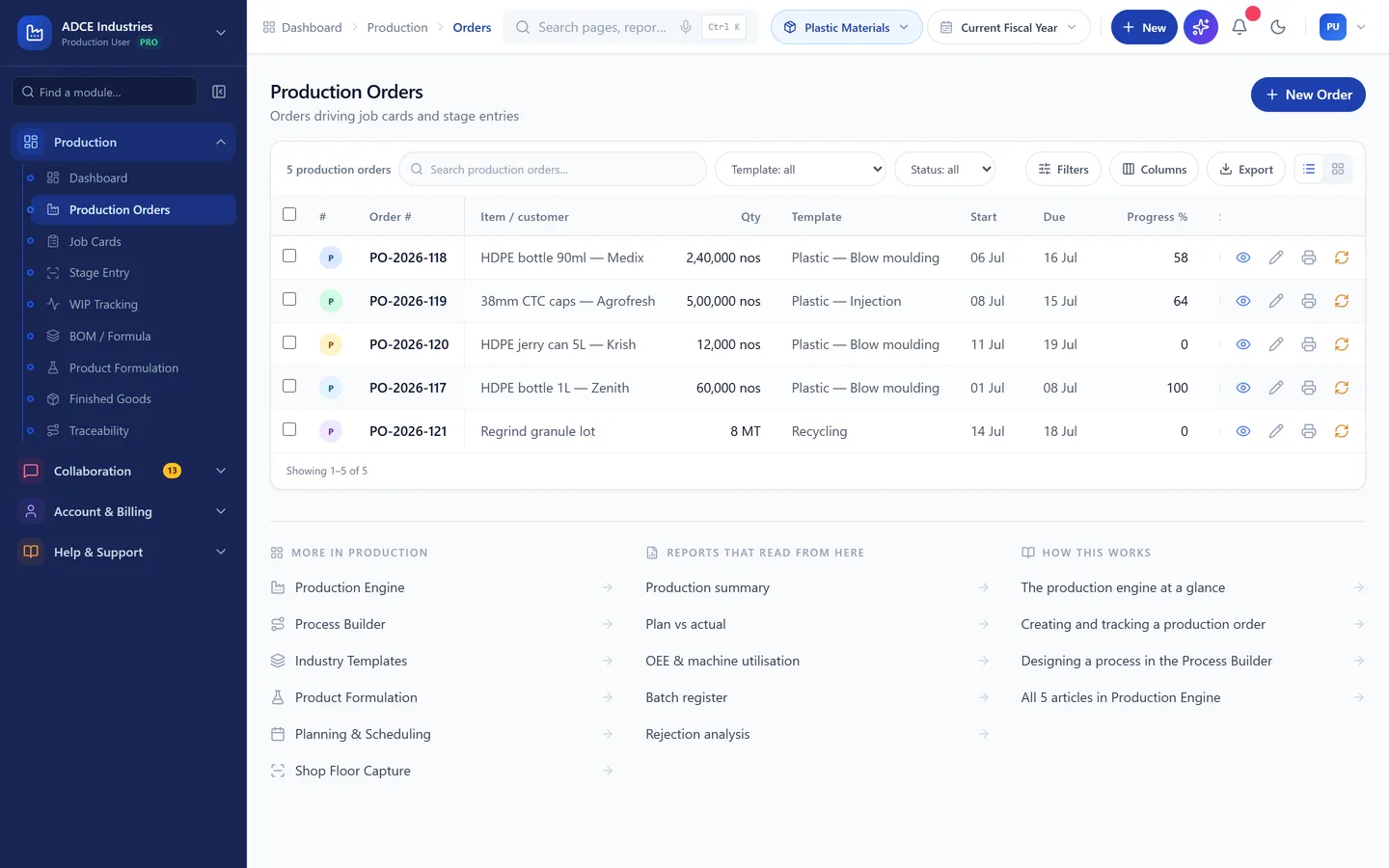
  1. Go to Production → Production Orders and click New Order (or + New → Production Order from anywhere).

    Orders list with row actions
    Orders list with row actions
  2. Fill item, quantity, dates and template, then Save. The order appears in Planning & Scheduling for machine allocation.

  3. Job cards are issued per stage; the icons on any row give View, Edit, Update status and Delete.

    Job cards with OK / rejected / rework quantities
    Job cards with OK / rejected / rework quantities

Designing a process in the Process Builder

Stages, sequence, machines, QC checkpoints and approvals — configured visually.

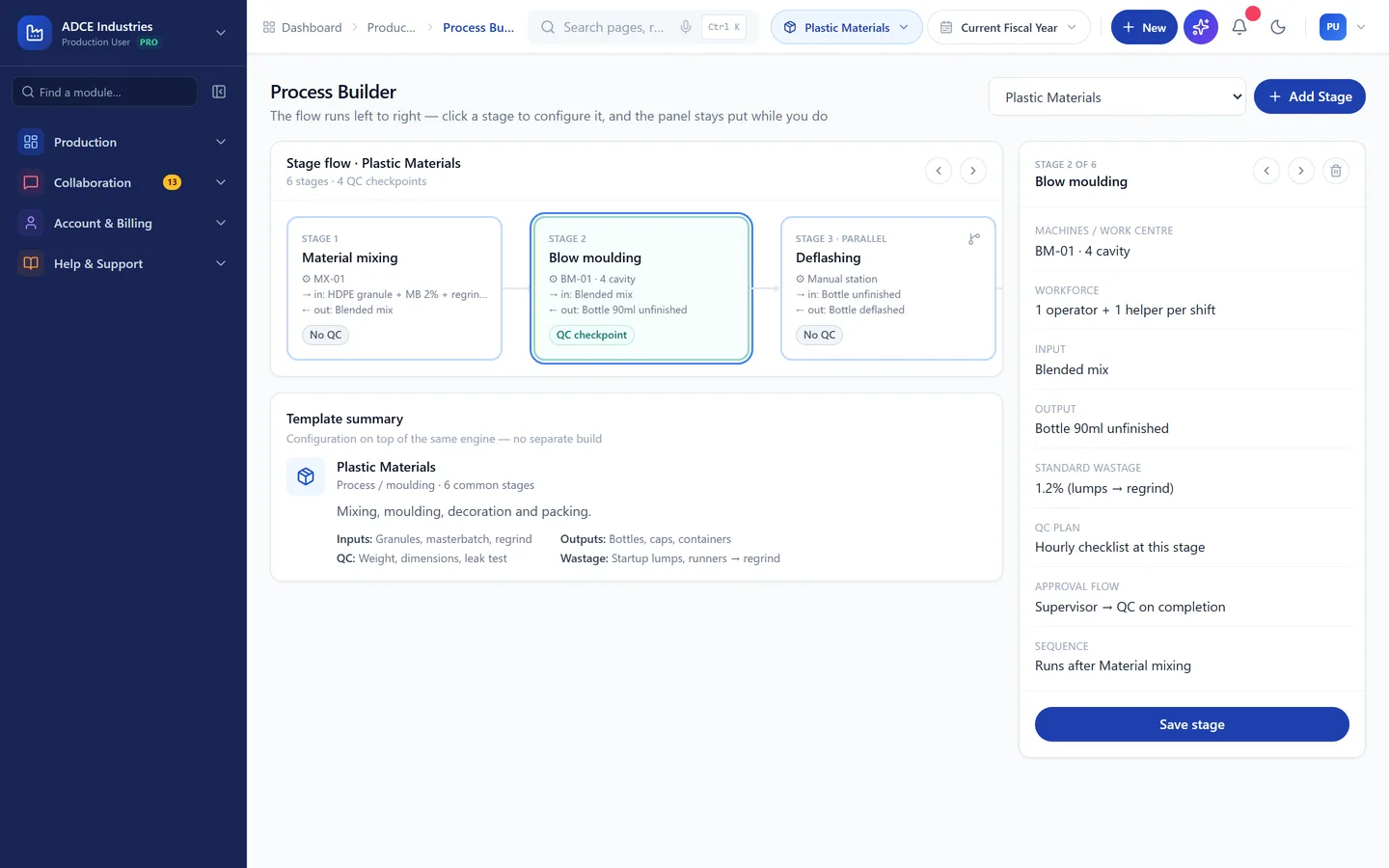
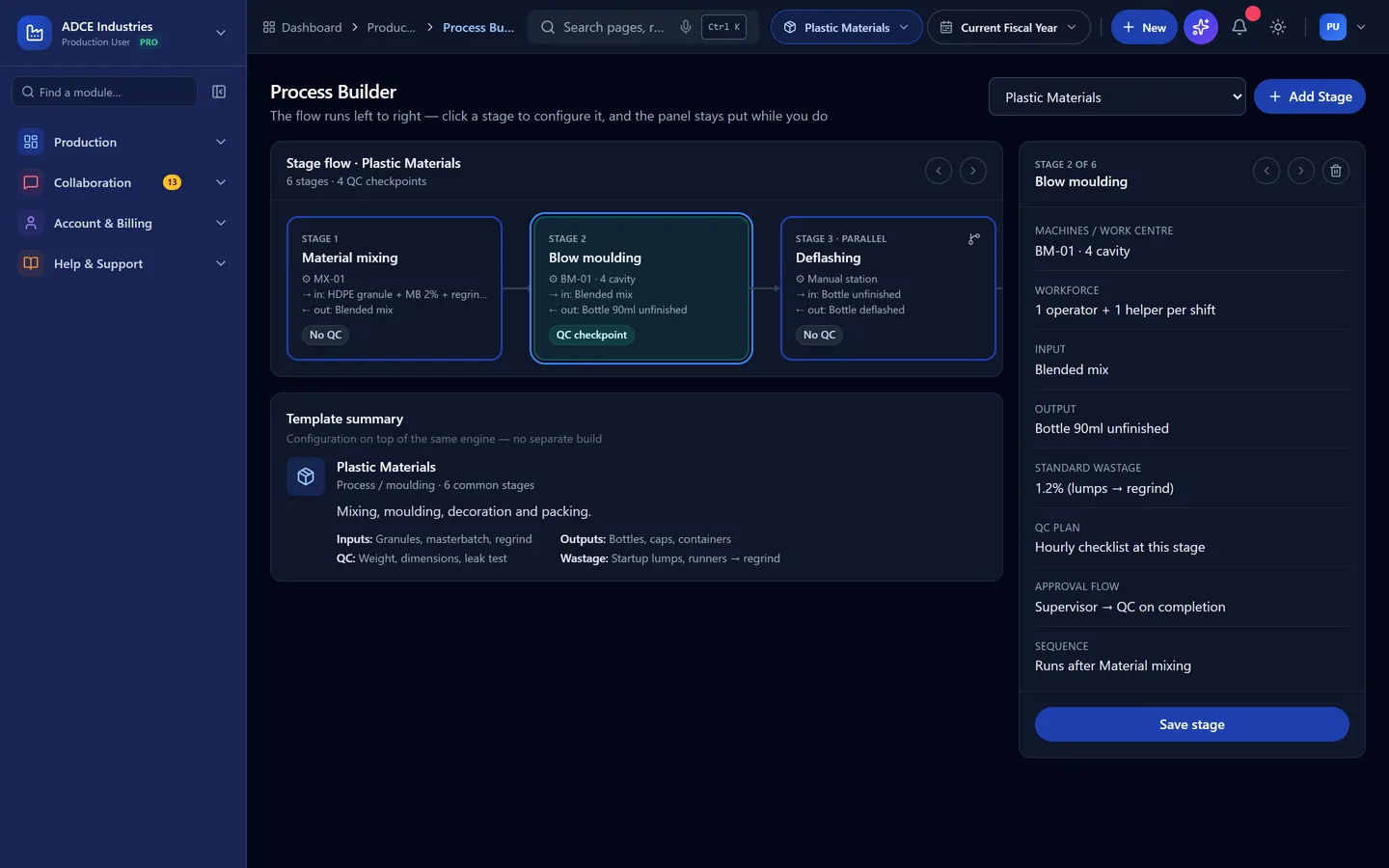
  1. Open Production → Process Builder. Pick an industry template from the selector to load its stage flow.

    Connected stage cards with QC checkpoints
    Connected stage cards with QC checkpoints
  2. Click any stage card to inspect its machines, inputs/outputs, standard wastage and QC plan in the configuration panel.

  3. Click Add Stage (header or the dashed card) to append a stage — name, machine, input/output and QC checkpoint.

Applying an industry template

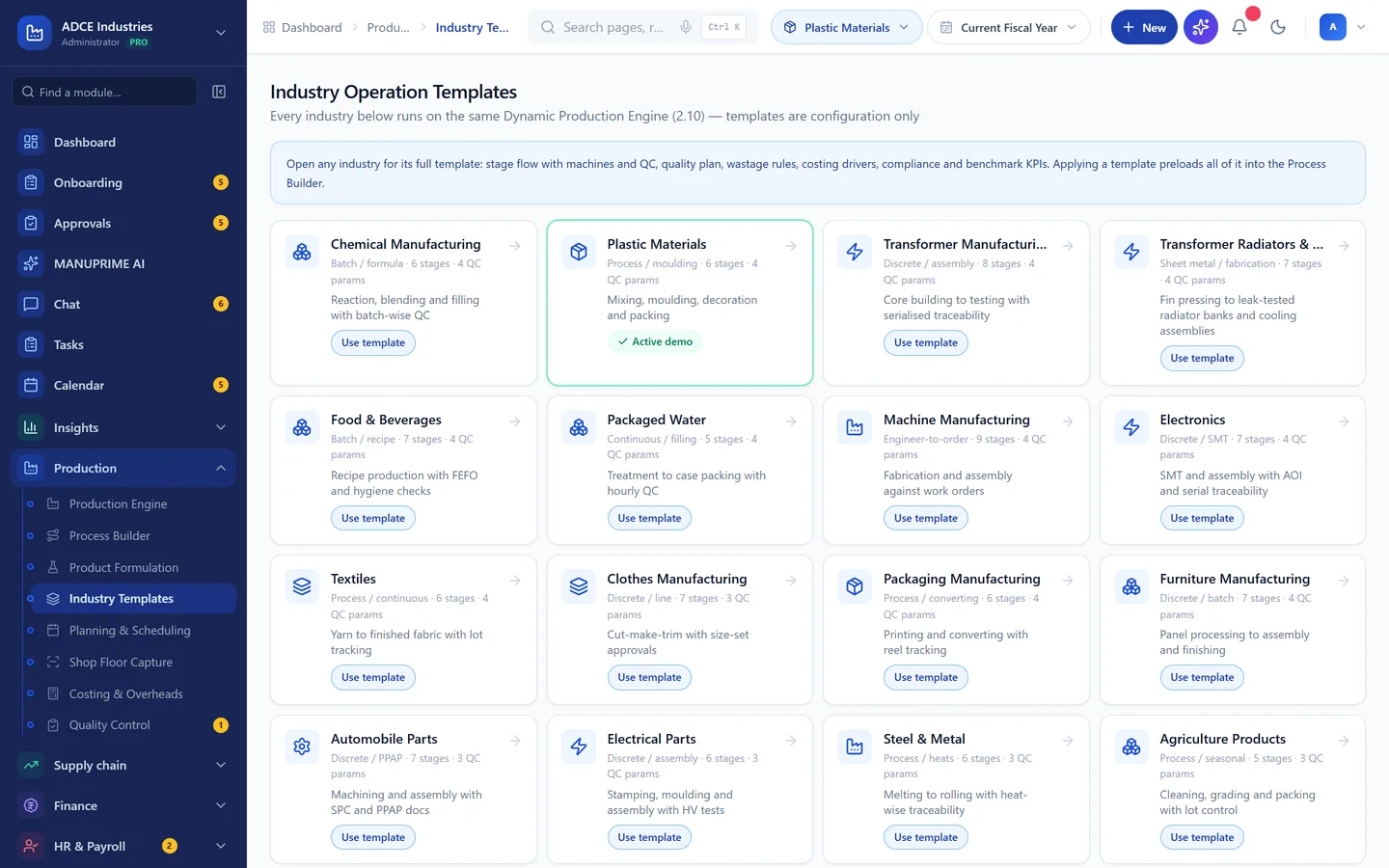
37 industries preconfigured on the same engine — chemical, pharma, plastics, transformers, food, steel, cement and more.

  1. Open Production → Industry Templates and pick your industry.

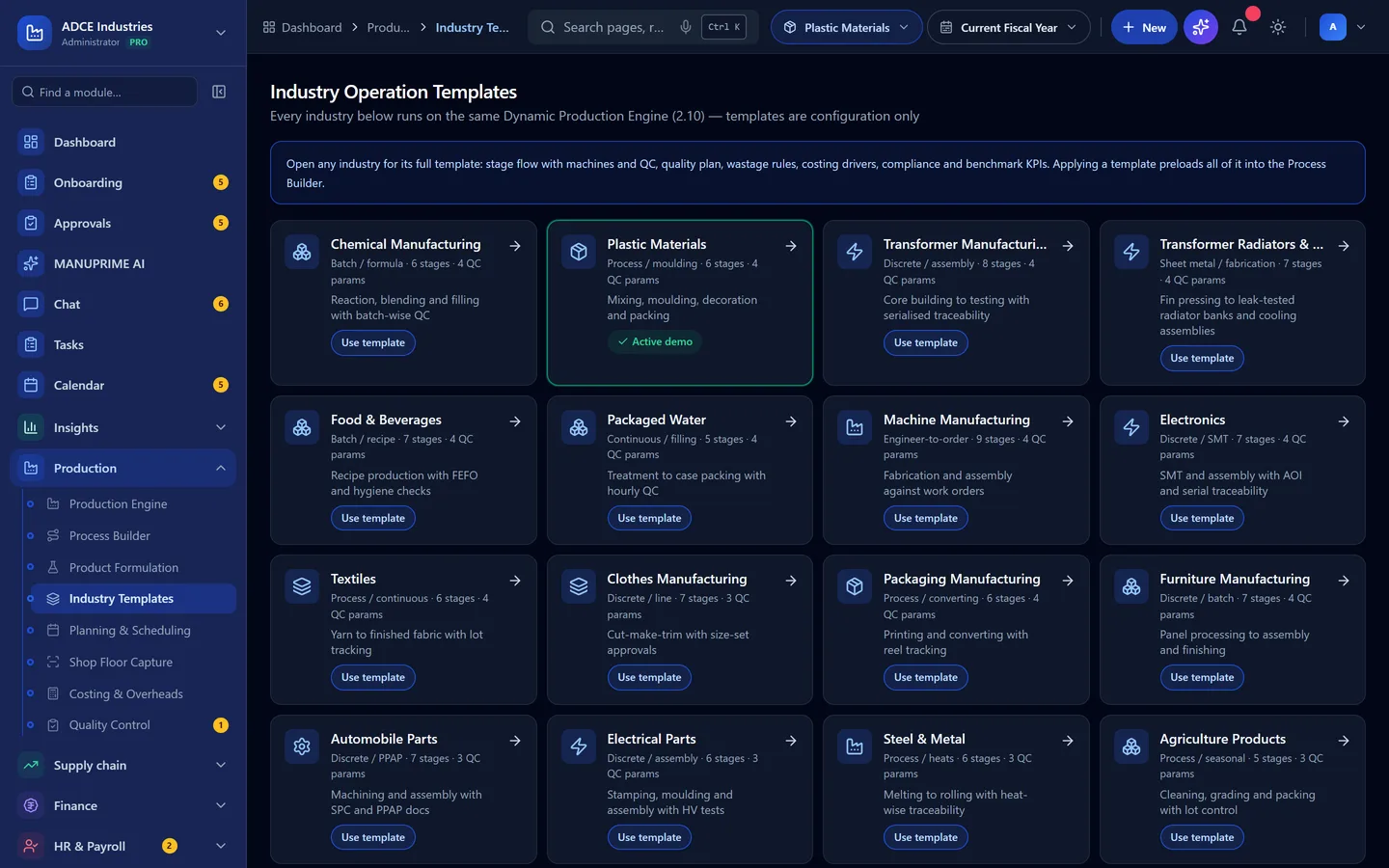
    37 industry template cards
    37 industry template cards
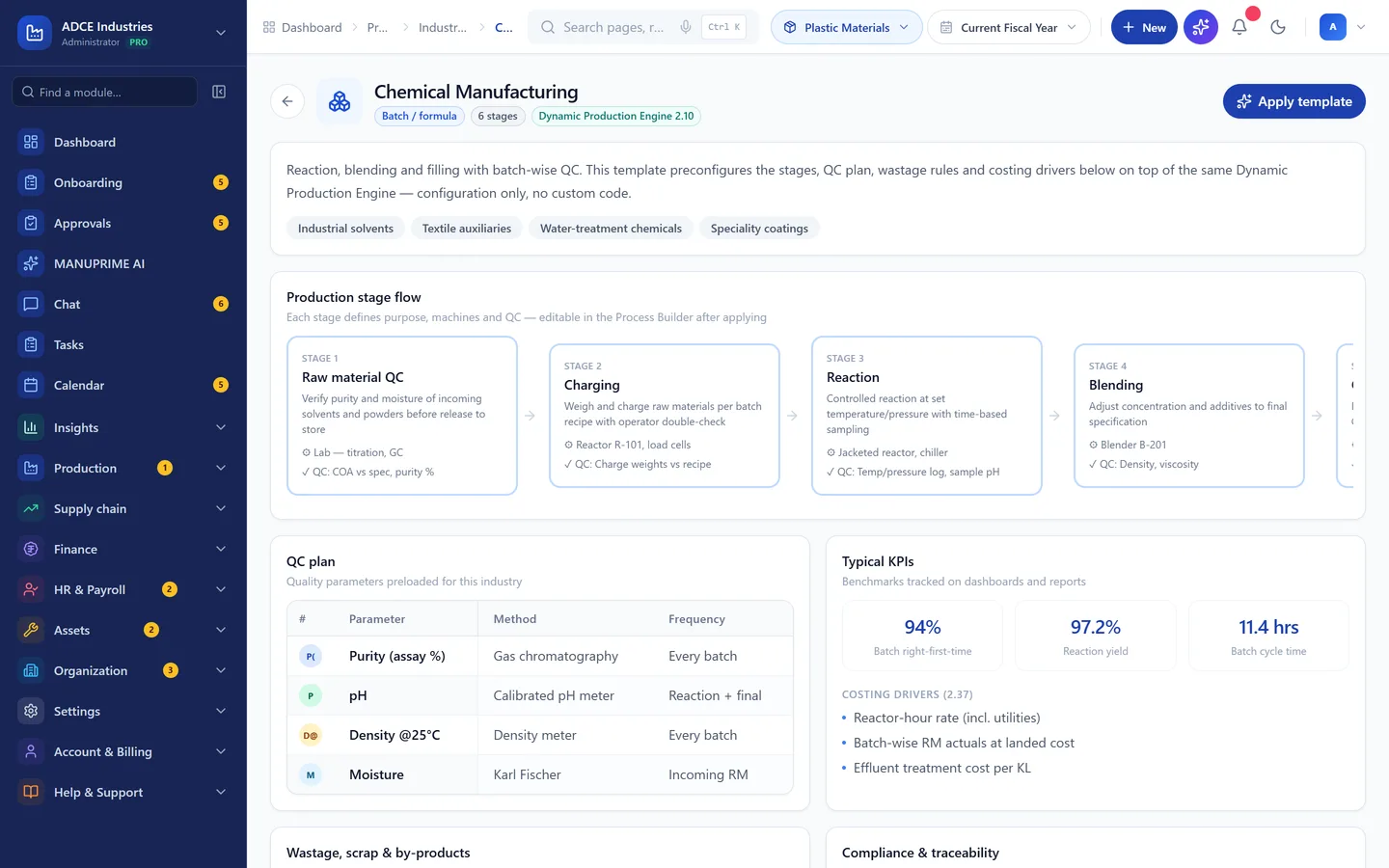
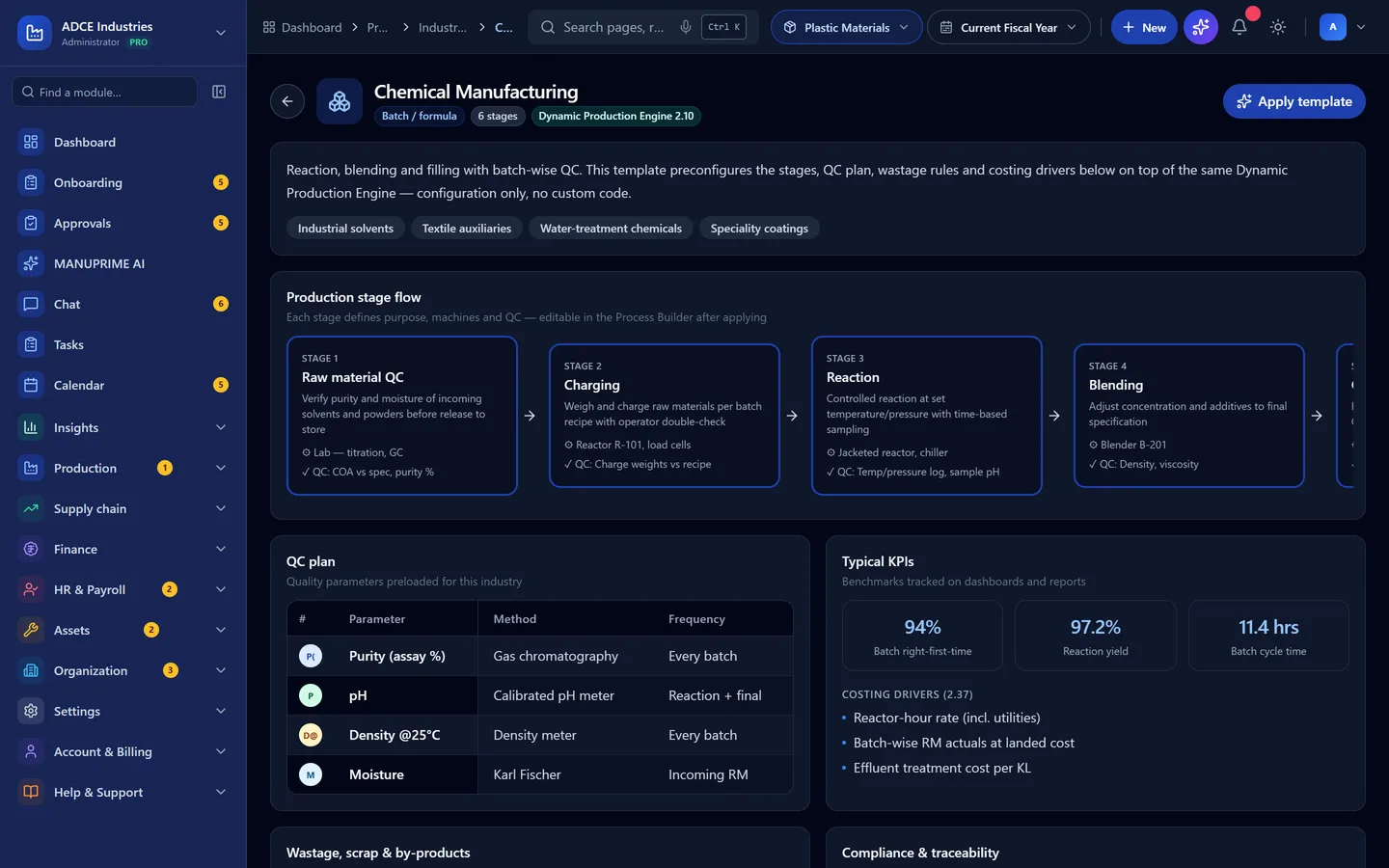
  2. The detail page shows the full stage flow with machines and QC per stage, the QC plan, wastage rules, costing drivers, compliance needs and benchmark KPIs.

    Template detail — stages, QC plan, KPIs
    Template detail — stages, QC plan, KPIs
  3. Click Apply Template to preload everything into the Process Builder for your plant. Custom logic beyond configuration is raised as a change request.

Tracing a batch end-to-end (and recalls)

Forward and backward genealogy from raw-material GRN to dispatched invoice.

  1. Open Production → Traceability, enter a batch number (e.g. FG-26-0712) and click Trace.

    Batch genealogy GRN → dispatch
    Batch genealogy GRN → dispatch
  2. The chain shows GRN → RM batch → mix lot → WIP job card → QC → FG batch → dispatch with dates and references.

  3. The recall report lists every dispatch that consumed a suspect RM batch, so you can quarantine in-stock batches and notify customers.

Still stuck?

Write to contact@anantatechhub.com or call us. You reach the people who build it, not a queue.