
Skip to content
MANUPRIME

Login, navigation & PWA (2.1)

Getting Started

3 articles

Signing in and switching roles

MANUPRIME is role-based — what you see depends on the role you sign in with.

  1. Open MANUPRIME and sign in with your email and password. For demos, pick any of the 14 roles from the grouped dropdown and press Preview — no password needed.
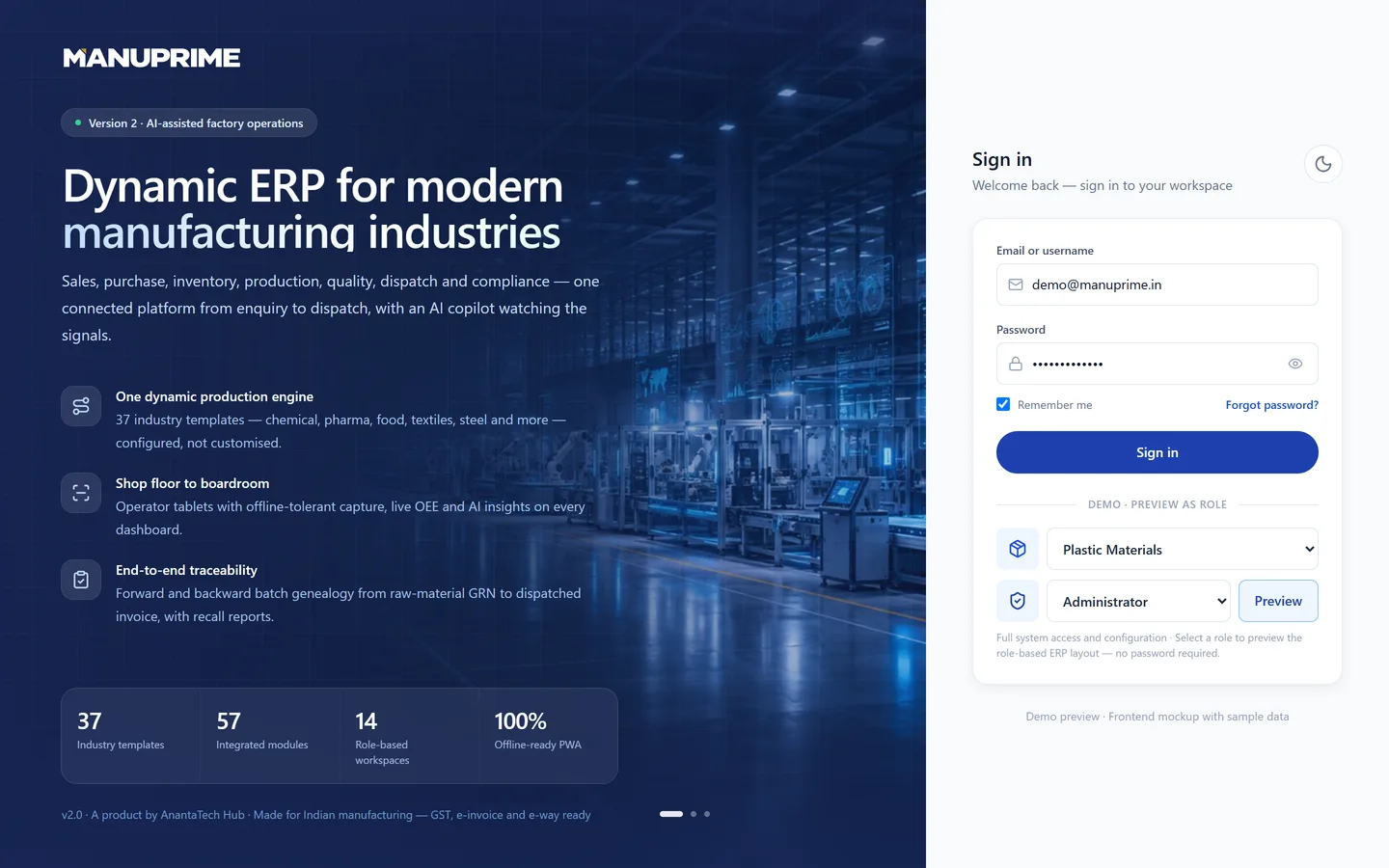
    Sign-in with role preview
    Sign-in with role preview
  2. You land on your role’s dashboard. The sidebar (desktop) or bottom navigation (mobile) shows only the modules your role can access.
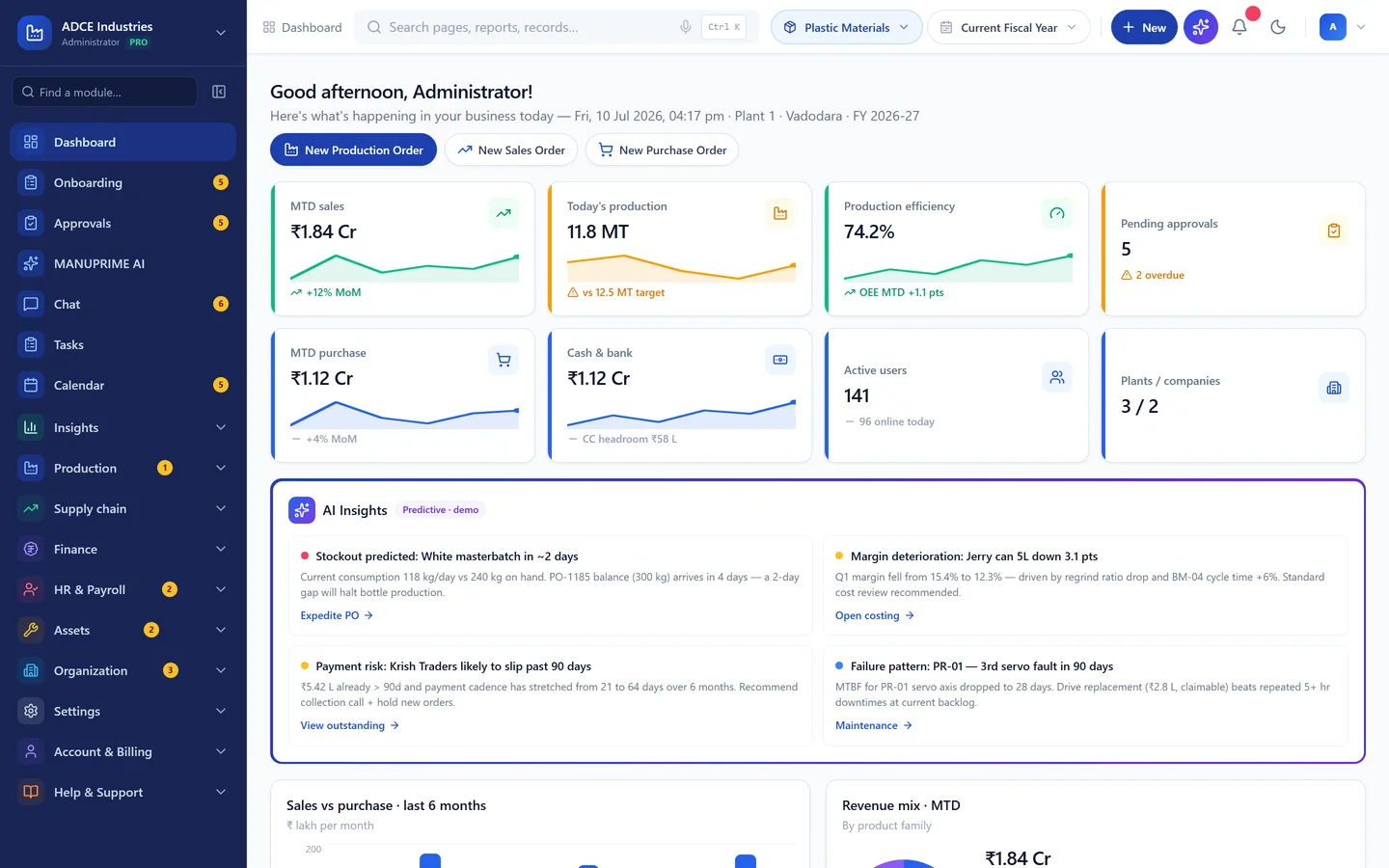
    Administrator dashboard after sign-in
    Administrator dashboard after sign-in
  3. To switch roles, log out from the profile menu (top-right) and sign in again. Tip: share a direct demo link with ?demoRole=production in the URL.
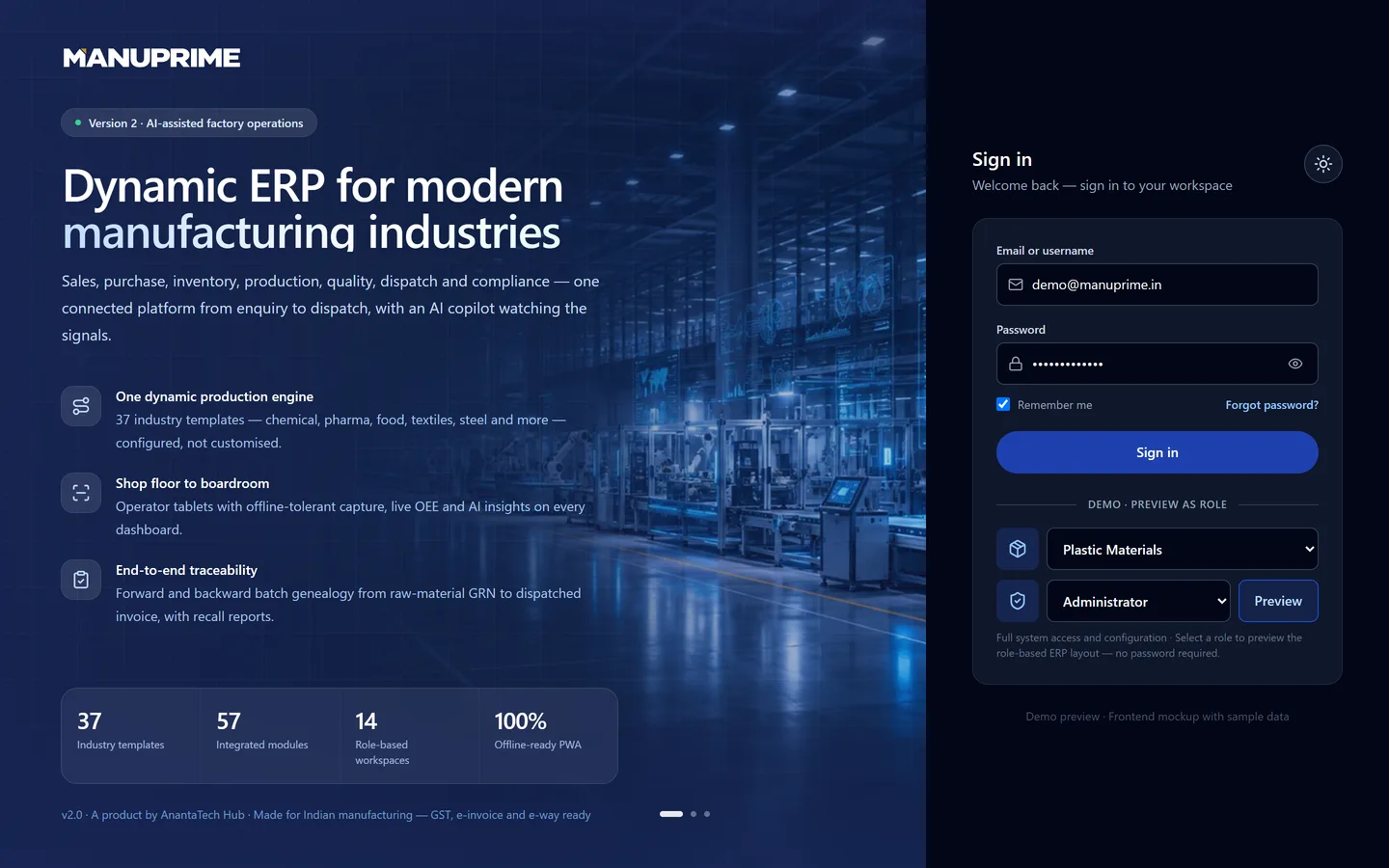
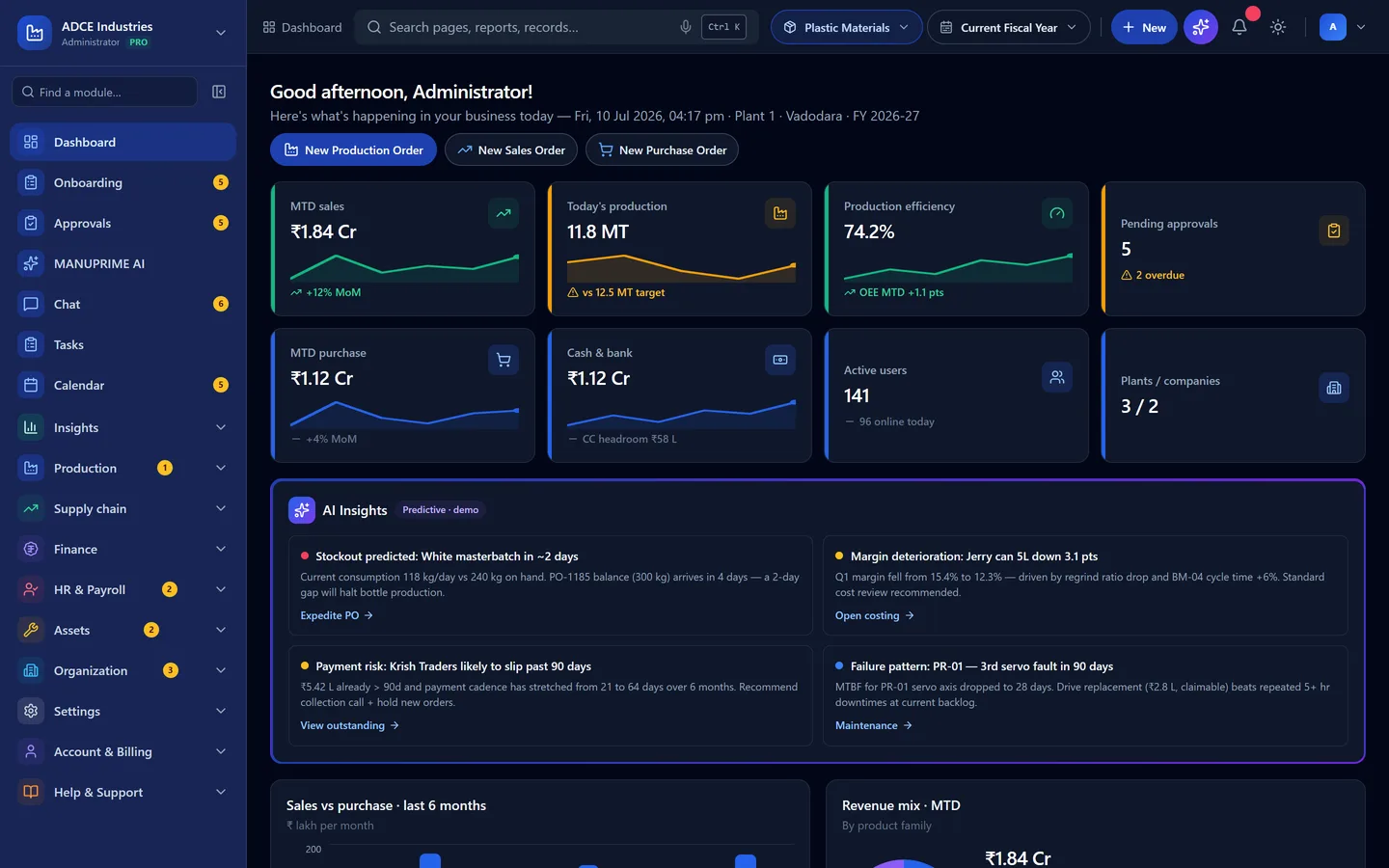
Installing MANUPRIME as an app (PWA) and using it offline

MANUPRIME installs from the browser and keeps working offline on the shop floor.

  1. In Chrome or Edge, click Install MANUPRIME (bottom-right floating button) or the install icon in the address bar. On Android, use “Add to Home screen”.

  2. Installed, it opens in its own window with the app icon. The app shell loads even with no internet; shop-floor entries queue and sync automatically.

  3. When a new version is deployed you’ll see an “Update available” toast — click Update to reload to the latest version.

Still stuck?

Write to contact@anantatechhub.com or call us. You reach the people who build it, not a queue.